Fill the guide in now, one screen at a time. The person you leave it for opens the same screens later and follows the next step.
1
Get the app
On iPhone and iPad, get Left For You from the App Store. Family Sharing is on, so one purchase covers the Apple Family group. Windows and Mac downloads on this site are separate. The first launch is a new empty guide: a short starter checklist and a built-in how-to PDF.
The app after you install it
2
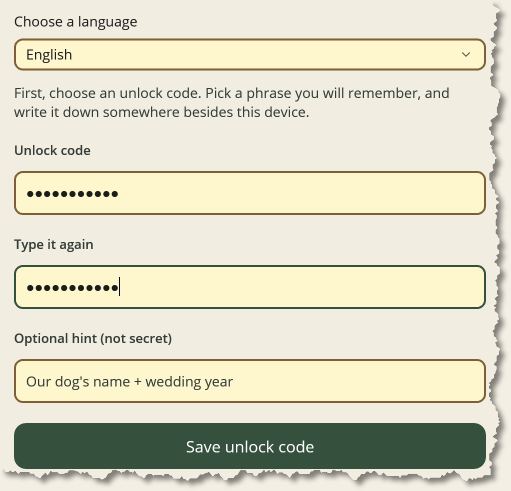
Choose an unlock code
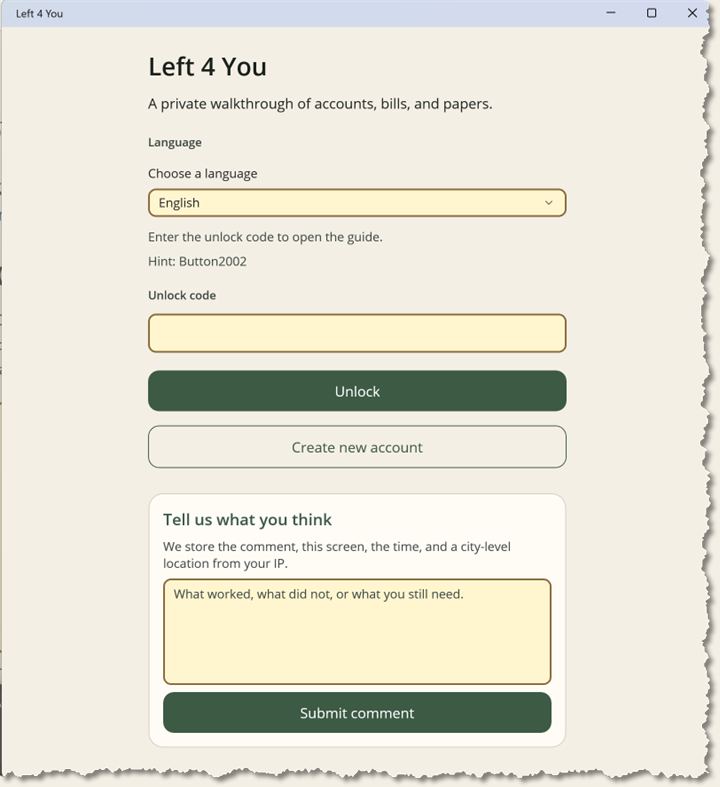
The first screen asks for a code of at least four characters. A short phrase your spouse will remember works better than 1234. An optional hint is stored in plain text on purpose — it is a reminder, not a secret. Write the code down somewhere besides the device. The code itself is never saved. It unlocks the encrypted file that holds passwords and account numbers. If the code is lost, those secrets cannot be recovered. Create new account on that screen erases this copy. Use it only when you mean to start blank.
The unlock screen
3
Walk through setup, or skip it
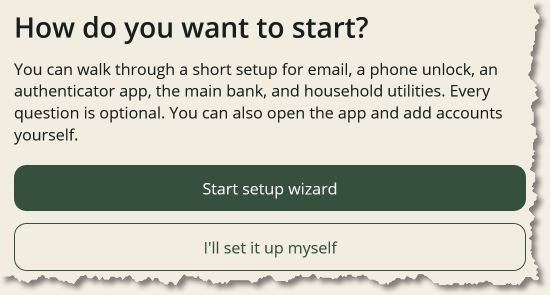
After a new code, the app asks how you want to start. Start setup wizard collects a privacy note, who the guide is for, a primary email, the phone unlock (PIN or passcode), how to open an authenticator app, the main bank, and household utilities (electric, water, gas, internet). Every question can be skipped. Or choose I'll set it up myself and add accounts later. What you type stays on this device.
The setup wizard
4
Write the letter on Home
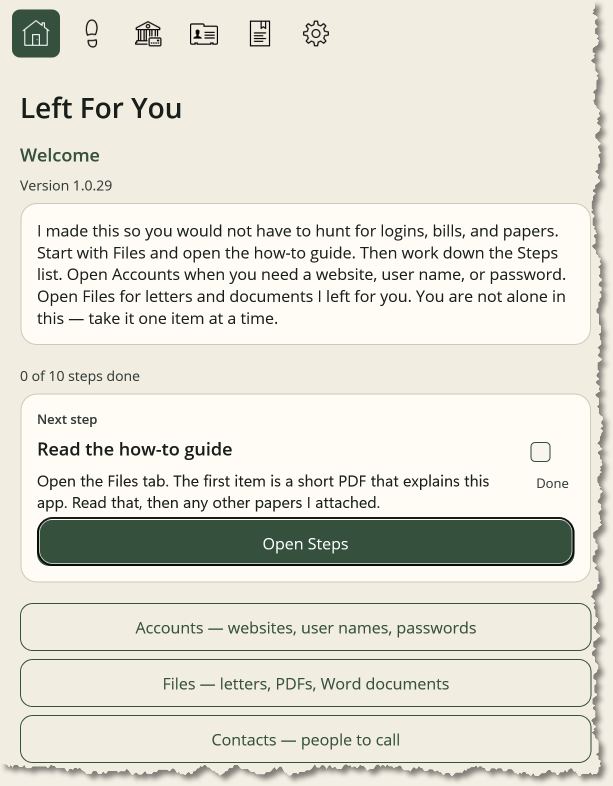
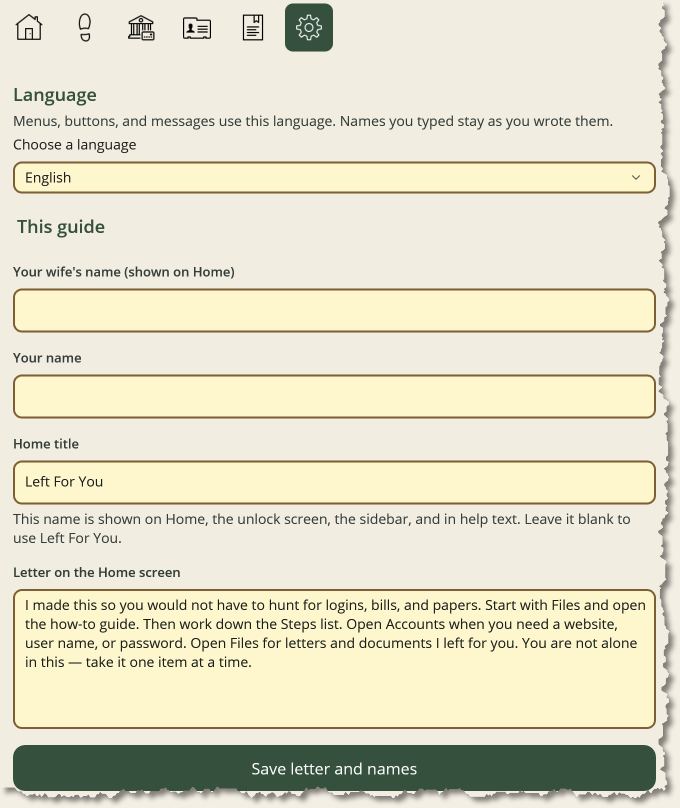
Settings holds your spouse's name, your name, the Home title, and the welcome letter. Home shows that letter, how far the checklist has come, and the next unfinished step. Read the letter first, then work the list.
Home, with the letter and the next step
5
Add the people to call
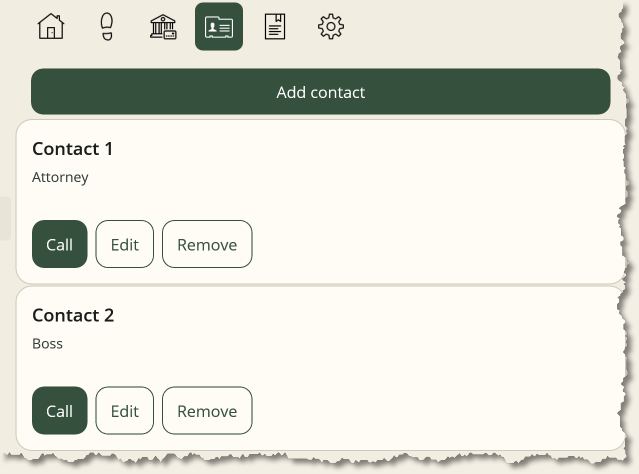
Contacts is the short list to call first: family, the attorney, a doctor, anyone you mark. Phone numbers default to US format, like (555) 123-4567. Change the country under Settings, Phone numbers, if you need Canada, the UK, or international numbers as typed.
The Contacts list
6
Add the accounts
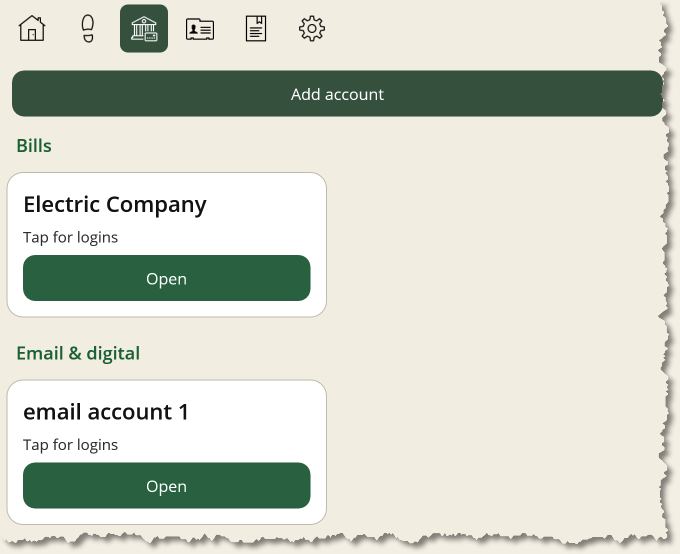
Accounts are large buttons, two per row, grouped by category — Bills, Banking, Insurance, or names you choose. Categories and the names inside each group are alphabetical. Open an account to see the website, user name, password, and account number. From there you can open the website, copy the user name or password, or show the password on screen. Settings, Account categories, adds, renames, or removes those groups. Renaming updates the accounts in the group. Removing a group moves those accounts to Other.
An account, with its login
7
Build the checklist
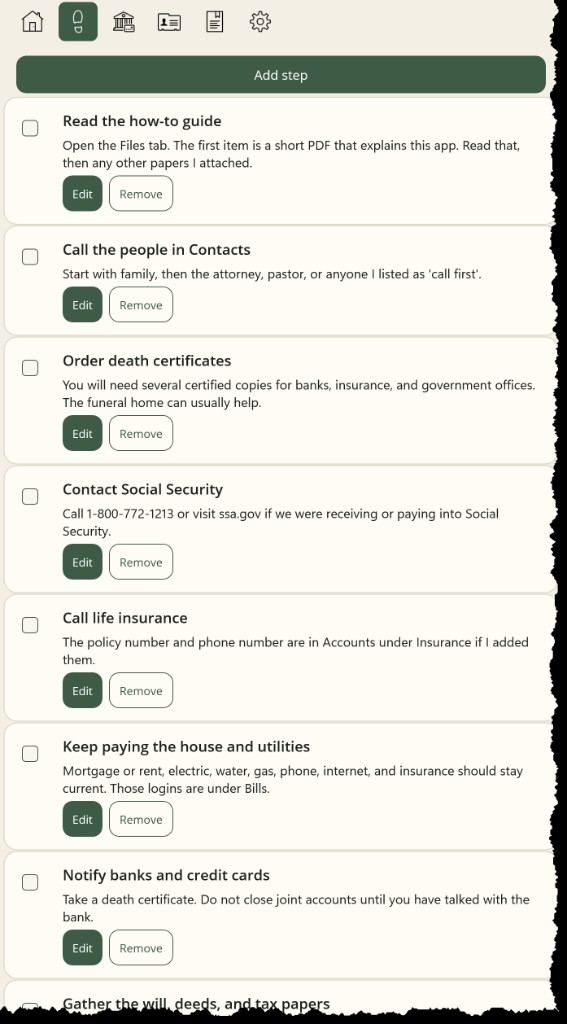
Steps is a numbered list. Home always shows the next unfinished step with a Done checkbox. Checking it marks that step complete and brings the next one forward. When you add or edit a step, Link an account and Link a contact sit side by side (they stack on a phone). Pick one and tap Insert account link or Insert contact link. The name in the step then opens that account or person.
A step linked to an account or a contact
8
Add the papers
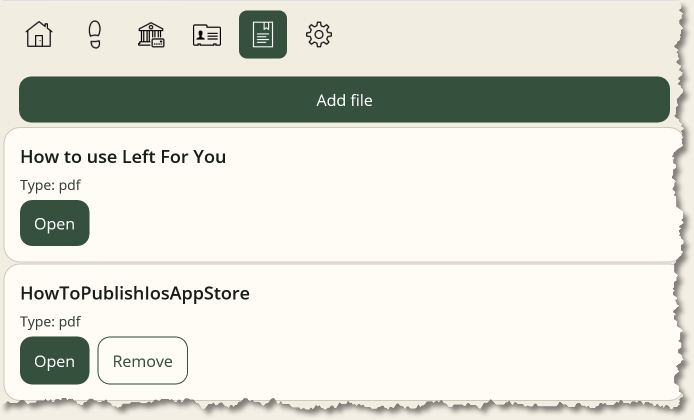
Files holds letters, PDFs, and Word documents (.txt, .docx, and .pdf). The first item is always the built-in how-to, titled How to use plus the Home title. That file cannot be removed. Open reads a file in the app.
The Files list, with the how-to first
9
Lock it, and back it up if you want
When the guide is ready, turn on Lock editing in Settings so nothing is deleted by accident. Turn it off later if you need to change something. Back up this guide stores an encrypted copy on this website, keyed to the install id shown in Settings. Left For You cannot open that backup. To restore on another copy of the app, paste that id into Settings and use the same unlock code. On a phone, the sections sit along the bottom: Home, Steps, Accounts, Contacts, Files, and Settings. On Mac and Windows they are a left sidebar and an icon row under the window title. On a Mac, the Go menu (Command-1 through Command-6) jumps to the same sections.
Settings, with Lock editing and backup
10
When your spouse opens it
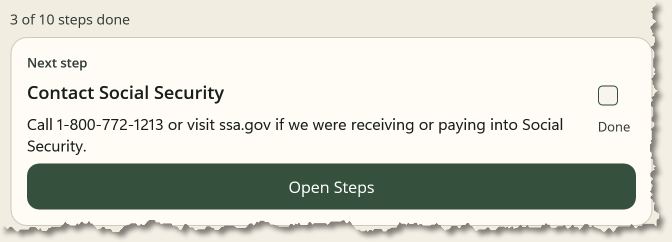
Your spouse types the unlock code. The hint is on that screen if you saved one. Home shows your letter and the next step. Your spouse checks Done when that step is finished. A linked name opens the account or the person to call. From there they can copy a password, open the website, or place the call. There is no need to finish the list in one day. One item at a time.
Checking off the next step on Home
One household, on the device
Names, passwords, and account numbers stay in an encrypted file on the phone or computer. There is no password recovery. Write the unlock code down, and keep a printed copy of the most important logins as well.
Get the app
iPhone and iPad are on the App Store. Windows and Mac are on this site.